In countries like India, Cricket is like a religion, with countless followers and unending passion for it. Cricket matches are pre-scheduled, so we plan to adjust our lifestyles accordingly. But sometimes, when we are at work or other places, it's not possible to grab the live scores and match updates. So, here are few of the best apps for your smartphone to update you every moment.
Showing posts with label Android. Show all posts
Sunday, April 06, 2014
Watch Live Cricket Scores Instantly On Your Smartphone
In countries like India, Cricket is like a religion, with countless followers and unending passion for it. Cricket matches are pre-scheduled, so we plan to adjust our lifestyles accordingly. But sometimes, when we are at work or other places, it's not possible to grab the live scores and match updates. So, here are few of the best apps for your smartphone to update you every moment.
Monday, March 31, 2014
[APP] Feel Nostalgic Knowing What You Were Doing On The Same Day In History
Ever thought of what were you doing on this day 2 years ago? 3 years ago? Can't remember, right? Give this task to Timhop, a popular app among the iOS users which has finally landed in the Google Play Store recently. The app, also called the Time Machine App takes you back in the history of the present date showing old updates from various social networking sites.
Saturday, March 29, 2014
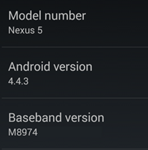
Android 4.4.3 KitKat Update for Nexus devices arriving soon
Following up the oodles of rumors streaming in the air from the past few weeks, Android 4.4.3 KitKat Update has been confirmed with two new KitKat builds discovered online. The update will get released very soon for Nexus 5 and Nexus 7 devices. The new update will purely be a bug-fixer, targeting known hitches particularly the camera issue in Nexus 5.
Thursday, March 27, 2014
Wednesday, March 19, 2014
Moto 360 : Motorola's Android-powered Smartwatch
By Unknown
3:20 pm
Android,
Google,
Innovation,
Moto 360,
Motorola,
News and Launches
Leave a Comment
The ecstasy of 2014 is finally showing up with the introduction of Android-powered watches creating a itchy feeling on the skin below our ordinary wrist-watches. Very soon after Google's announcement for Android wear, Motorola (Google owned company) has announced it's Android powered smart watch entitled as Moto 360, a truly modern timepiece. The smartwatch looks fantastically awesome as an everyday watch but has some prodigious features to die for.
Motorola Moto X Launched In India, Priced at ₹ 23,999
Finally entering the Indian territory months after its global launch is the flagship device by Motorola, Moto X. The smartphone is made available by Motorola's exclusive launch partner in India, Flipkart.com which confirmed the news of the arrival through Twitter yesterday. The device is in stock in 5 color variants and can be bought at ₹23,999.
Monday, March 10, 2014
Gulaab Gang - The Game Now Available on Play Store
Sunday, March 09, 2014
Top Best Processors For Smartphones 2014
Processors, What are they ? A question which most of the Smartphones owners can't answer so easily. Processor or the virtual brain is the core processing and functional component of every smartphone. They are the first preference to look upon before buying a smartPhone.Have you ever tried to know what they are and what they do.If your Answer is no then here is a complete guide for you to be get updated.Wednesday, March 05, 2014
Micromax Canvas Knight A350 Octa-core Smartphone Launched
What to expect from HTC One's successor!
After long wait its time for htc to reveal HTC one's successor.
Rumors say it will be HTC M8 or HTC One Two or HTC Two .
HTC has already made its unique place in market with its amazing HTC one in 2013 .
Feeling the heat of the competition from Samsung Galaxy S5 and Apple iPhone 6 company has decided to launch One's successor on 25th March in Company's event in New York .
The Flagship SmartPhone is Expected to have better enhanced features andabilities as compared to HTC M7.we here are going to tell you about all possible specs and features of it.
- Body - it is rumored that it has a metallic body.
- Screen- it will have a 5.2' inches which may support 2k reso and of course 1920 pixel display.
- Shape - it is expected to be slimmer than HTC one .
- OS and Sense - it will run Android 4.4.2 and Company's HTC sense 6.0.
- ONE's successor may feature a Snapdragon 800 processor.
- Expected to have a small fingerprint sensor on board same as ONE's big brother ONE Max.
- it may have 3 GB Ram which is enough for it to be super smooth interface runner.
- It is leaked to have 2 Back Camera Sensors for more better pics.
- it will have a improved Ultrapixel Camera.
- Company decided to have on Screen buttons which means more room for display.
- Will get recent app button again which Company removed in HTC ONE.
- It will have dual front speakers with Boom Sound.
- May be water Proof.
Some Leaked Photos :-
Tuesday, February 25, 2014
Samsung Galaxy S5 : All You Need To Know
Saturday, February 22, 2014
WhatsApp Updated: Disable "Last Seen At", Profile Picture & Status
After getting an as enormous amount as $19B from Facebook, WhatsApp finally brought out a major update to involve every user in its celebration. Users can now decide who can see their status messages, profile pictures and most importantly, that "Last Seen At" notifier. Continue Reading to know how...
Wednesday, February 19, 2014
Tuesday, January 28, 2014
How to Find your lost Android Device
If you have lost you Android Device and unable to track it cuz you haven't loaded any app soo here is a guide to track it .Today i am going to use Android Device Manager which comes preloaded in you Device .Android Device Manager can be used to find you lost ,misplaced device anywhere.
All the Android Smartphones come with Google play installed in it.When you use Google Play for first time on any device (Smartphone/tablet),Google installs Android device Manager unknowingly.
Requirements for it are:-
HOW TO START ANDROID DEVICE MANAGER ON YOUR DEVICE
follow these steps to activate :-
All the Android Smartphones come with Google play installed in it.When you use Google Play for first time on any device (Smartphone/tablet),Google installs Android device Manager unknowingly.
Requirements for it are:-
- An Android Device with active Data connection.
- A PC/laptop with net.
HOW TO START ANDROID DEVICE MANAGER ON YOUR DEVICE
follow these steps to activate :-
- Go to settings>>Security>>Device Administrator
- you'll see apps there and probably first one is Android Device Manager
- Tap on it and Activate it.
Now once you have activated it ,now grab you net enabled PC/laptop.
- go to Google's play store . link to it https://play.google.com/store

- Log in in using the same Google id as of Play Store in Device.
- You will see a Gear icon On the top Right Corner.
- Click on it and you will see Android Device Manager.

- Once it is opened in your web browser ,it will automatically contact your device.The map of your country will be displayed on your web browser.
- Once Android Device Manager has located your smartphone you will see its location on Google maps and the distance it is away from you.

Now you'll have three options there:-
- The Ring Device:- this feature will ring your device at full volume for 5 minutes even it is silent . Unfortunately it will not if it is switched off.
- Lock you Device :- This feature will lock your device and will be provided with a new password to access it.you can set your desired password too.
- Erase all Data:-Using this feature all the data which is present in your device will be deleted which will include images,music and other personal files.however it won't format your Sd card .Also Android Device Manager will not work once you have erased all the data.It will Factory Reset your Smart phone .
Saturday, January 25, 2014
Samsung Galaxy Note Pro - Features & Specifications
Unraveled at the CES '14, the Samsung Galaxy Note Pro might be the first milestone for Samsung this year. The slate-like tablet is likely to hit the global markets this Valentine's Day. The tablet is expected to present a new recipe of mobile-technology, equipped with spices of innovation and perfection.
Thursday, January 23, 2014
How to hard/factory reset an Android phone
Android's recovery mode help the user to troubleshoot his/her device .
It can be used to wipe your all data and restore your device to its factory state.
your device is full of your important data make sure its backed up. This includes your Google Authenticator credentials,which will be lost .
It can be done in two ways or depending on your situation:-
Safe mode can't be used when your device unable to boot here comes the recovery mode into play.
android can be made to boot in recovery mode with use of several combinations .this varies from device to device .
some Examples:-
--> Samsung devices:Volume up+Home+Power button
-->Nexus devices:Volume up+Volume down+Power button
-->Devices with camera dedicated buttons :Volume up+Camera button
If your device isn't listed here and none of the above methods work do Google search or look into devices user manual.
Release buttons when the device powered on.You'll see an image of an Android lying on its back with its chest open and its internals revealed.
on the very next screen you'll see many options blue in color .now your touch won't work . volume Up and Down keys are used to navigate and Power button to Select.
Now to hard reset your Phone follow these steps :-
Now if You can Boot
Hard reset/format can be performed using the option in setting .To do this steps are as follows:-
It can be used to wipe your all data and restore your device to its factory state.
your device is full of your important data make sure its backed up. This includes your Google Authenticator credentials,which will be lost .
It can be done in two ways or depending on your situation:-
- If you can boot
- If you can't boot.
If You Cant Boot
Safe mode can't be used when your device unable to boot here comes the recovery mode into play.
android can be made to boot in recovery mode with use of several combinations .this varies from device to device .
some Examples:-
--> Samsung devices:Volume up+Home+Power button
-->Nexus devices:Volume up+Volume down+Power button
-->Devices with camera dedicated buttons :Volume up+Camera button
If your device isn't listed here and none of the above methods work do Google search or look into devices user manual.
Release buttons when the device powered on.You'll see an image of an Android lying on its back with its chest open and its internals revealed.
on the very next screen you'll see many options blue in color .now your touch won't work . volume Up and Down keys are used to navigate and Power button to Select.
Now to hard reset your Phone follow these steps :-
- Select Wipe data/factory reset with the volume keys and tap the power button to activate it.
- Select Yes-erase all user data with volume buttons and tap power.
Your Device will be reset to its factory state.
Now if You can Boot
Hard reset/format can be performed using the option in setting .To do this steps are as follows:-
Saturday, January 18, 2014
Tuesday, January 14, 2014
Nokia Normandy Features & Photos "LEAKED"
The once dominant mobile-phone giant Nokia has finally planned to prefer economy over particularity. Described as a real "Game Changer", Nokia's Latest Normandy will feature an Android OS, inaugurating an all new track for the Microsoft-bought smartPhone brand. Recently leaked were a bunch of its pics, features and lots more...
Monday, January 13, 2014
Some Useful & Important Android Tips & Tricks

Taking into consideration the Android OS partnership in the
world smartPhones market, I assume that you too own an Android phone. (N even
if you don't, this may work for other phones too) . Not everyday we want to
know some technical or network related data of/from Android devices, but when
we do, it's hard to think how to! So, here's a list of few useful and important
Android tips and tricks:
1. Phone Information, Usage and Battery – *#*#4636#*#*
2. IMEI Number – *#06#
3. Enter Service Menu On Newer Phones – *#0*#
4. Detailed Camera Information –*#*#34971539#*#*
5. Backup All Media Files –*#*#273282*255*663282*#*#*
6. Wireless LAN Test –*#*#232339#*#*
7. Enable Test Mode for Service –*#*#197328640#*#*
8. Back-light Test – *#*#0842#*#*
9. Test the Touchscreen –*#*#2664#*#*
10. Vibration Test – *#*#0842#*#*
11. FTA Software Version –*#*#1111#*#*
12. Complete Software and Hardware Info – *#12580*369#
13. Diagnostic Configuration –*#9090#
14. USB Logging Control –*#872564#
15. System Dump Mode – *#9900#
16. HSDPA/HSUPA Control Menu –*#301279#
17. View Phone Lock Status –*#7465625#
18. Reset the Data Partition to factory state- *#*#7780#*#*
Check Them Out!
Share your thoughts below and if you have something to ask, we are there for you.